AWS Cost Explorer and Budgets: Master Your Cloud Spend (2026)
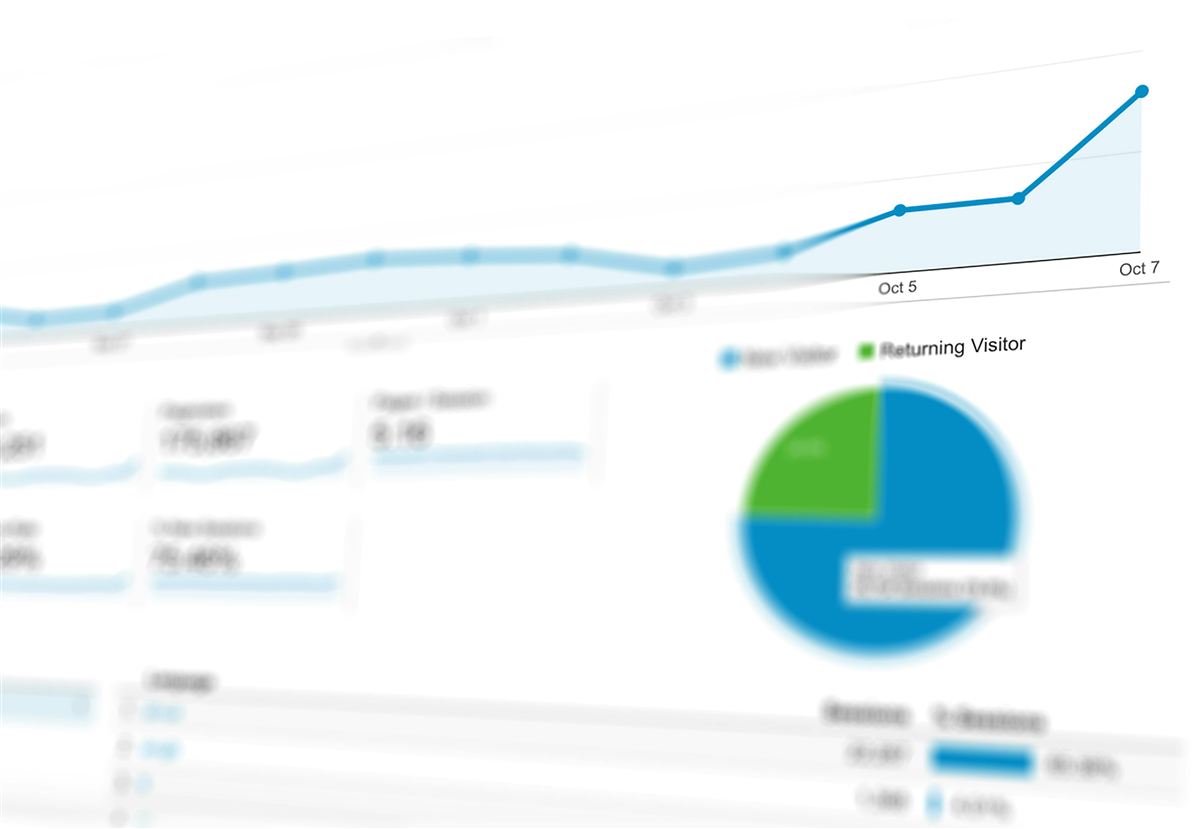
AWS bills don't manage themselves. Without deliberate tooling, a single runaway Lambda, a forgotten NAT Gateway, or a data transfer spike can add thousands to your monthly invoice before anyone notices. AWS Cost Explorer and Budgets are the twin pillars of cloud financial management — one gives you visibility and analysis, the other enforces guardrails and automated responses. This guide covers both deeply: console navigation, Python boto3 automation, rightsizing, Savings Plans coverage, Budget Actions, Cost Anomaly Detection, and building a full cost dashboard with Athena and QuickSight.
1. AWS Cost Explorer Console: Navigating and Filtering
Cost Explorer is available under the Billing and Cost Management console. It provides up to 13 months of historical cost data, a 12-month forecast, and the ability to drill into spend along multiple dimensions simultaneously. The default view shows monthly costs by service — useful as a starting point but rarely the view that answers real questions.
The real power is in the filter and group-by dimensions. You can slice your spend by any combination of:
- Service — EC2, RDS, Lambda, S3, CloudFront, etc.
- Region — us-east-1 vs eu-west-1 vs ap-southeast-1
- Linked Account — essential in AWS Organizations setups
- Usage Type — the most granular: BoxUsage:c5.xlarge, DataTransfer-Out-Bytes, etc.
- Purchase Option — On-Demand vs Reserved vs Spot
- Cost Allocation Tag — e.g. environment=production, team=platform
- Instance Type, OS, Tenancy, Resource — for deep EC2 analysis
Granularity controls the time resolution: Monthly is the default and gives a 13-month overview. Daily is essential when diagnosing a cost spike — it shows you which exact day spend jumped. Hourly is available for EC2-only views and is invaluable for catching runaway Auto Scaling events or Lambda infinite loops that happened overnight.
The Forecasting tab shows projected end-of-month spend based on current run rate — crucial for catching overruns before they happen. AWS uses machine learning on your historical patterns to generate the forecast; it accounts for cyclic patterns like month-end batch jobs or weekly CI/CD spikes. The forecast has confidence intervals: a narrow band means predictable workloads, a wide band means you have high variance and should investigate why.
Cost Explorer also surfaces coverage metrics directly in the console. The Reserved Instance and Savings Plans widgets on the Cost Explorer home page show your current coverage percentage at a glance — a single number that tells you what fraction of your on-demand-eligible spend is covered by a commitment-based discount. A coverage below 60% on stable workloads almost always means money left on the table.
For data transfer cost analysis, change the Group By to Usage Type and filter by the keyword "DataTransfer". This reveals the three main categories: DataTransfer-Out-Bytes (internet egress, most expensive at $0.09/GB first 10TB), DataTransfer-Regional-Bytes (cross-AZ traffic at $0.01/GB each way), and free inbound traffic. Cross-AZ traffic surprises many teams — every ALB health check, every cross-AZ database connection, and every microservice-to-microservice call across availability zones generates it.
2. Cost Explorer API with Python boto3
The Cost Explorer API lets you pull cost data programmatically — essential for building internal dashboards, Slack cost alerts, or automated tagging hygiene reports. The primary API call is get_cost_and_usage(). It costs $0.01 per API request, so cache results aggressively.
import boto3
import json
from datetime import datetime, timedelta

ce = boto3.client('ce', region_name='us-east-1')

def get_monthly_cost_by_service(months_back=3):
    """Get monthly costs grouped by service for the last N months."""
    end = datetime.today().replace(day=1).strftime('%Y-%m-%d')
    start = (datetime.today().replace(day=1) - timedelta(days=months_back*30)).replace(day=1).strftime('%Y-%m-%d')

    response = ce.get_cost_and_usage(
        TimePeriod={'Start': start, 'End': end},
        Granularity='MONTHLY',
        Metrics=['UnblendedCost', 'UsageQuantity'],
        GroupBy=[{'Type': 'DIMENSION', 'Key': 'SERVICE'}]
    )

    results = []
    for period in response['ResultsByTime']:
        period_start = period['TimePeriod']['Start']
        for group in period['Groups']:
            service = group['Keys'][0]
            cost = float(group['Metrics']['UnblendedCost']['Amount'])
            if cost > 0.01:  # Filter out negligible amounts
                results.append({
                    'period': period_start,
                    'service': service,
                    'cost_usd': round(cost, 2)
                })
    return sorted(results, key=lambda x: x['cost_usd'], reverse=True)


def get_cost_by_tag(tag_key='environment', start='2026-06-01', end='2026-06-30'):
    """Get costs grouped by a specific cost allocation tag."""
    response = ce.get_cost_and_usage(
        TimePeriod={'Start': start, 'End': end},
        Granularity='MONTHLY',
        Metrics=['UnblendedCost'],
        GroupBy=[
            {'Type': 'TAG', 'Key': tag_key},
            {'Type': 'DIMENSION', 'Key': 'SERVICE'}
        ],
        Filter={
            'Dimensions': {
                'Key': 'SERVICE',
                'Values': ['Amazon EC2', 'Amazon RDS', 'AWS Lambda', 'Amazon S3']
            }
        }
    )

    for period in response['ResultsByTime']:
        for group in period['Groups']:
            tag_value = group['Keys'][0].replace(f'{tag_key}$', '')
            service = group['Keys'][1]
            cost = float(group['Metrics']['UnblendedCost']['Amount'])
            print(f"  {tag_value:20s} | {service:30s} | ${cost:10.2f}")


def get_daily_cost_trend(days=30):
    """Get daily costs for anomaly detection baseline."""
    end = datetime.today().strftime('%Y-%m-%d')
    start = (datetime.today() - timedelta(days=days)).strftime('%Y-%m-%d')

    response = ce.get_cost_and_usage(
        TimePeriod={'Start': start, 'End': end},
        Granularity='DAILY',
        Metrics=['UnblendedCost'],
        GroupBy=[{'Type': 'DIMENSION', 'Key': 'SERVICE'}]
    )

    daily_totals = {}
    for period in response['ResultsByTime']:
        day = period['TimePeriod']['Start']
        total = sum(float(g['Metrics']['UnblendedCost']['Amount']) for g in period['Groups'])
        daily_totals[day] = round(total, 2)

    return daily_totals

if __name__ == '__main__':
    print("=== Monthly Cost by Service (Last 3 Months) ===")
    for item in get_monthly_cost_by_service()[:10]:
        print(f"  {item['period']} | {item['service']:35s} | ${item['cost_usd']:10.2f}")

    print("\n=== Cost by Environment Tag (June 2026) ===")
get_cost_by_tag('environment', '2026-06-01', '2026-06-30')ce:GetCostAndUsage, ce:GetCostForecast, and ce:GetReservationCoverage. Create a dedicated FinOpsReadOnly IAM role and assume it in your scripts — never run cost queries with admin credentials.
For generating a custom cost report by team — pulling costs for a specific tag value, comparing to the previous month, and emitting a Slack message — the pattern is straightforward. The key is to always use UnblendedCost for single-account views and BlendedCost only when doing organisation-level analysis where you want costs redistributed across accounts based on usage share. AmortizedCost is best for Reserved Instance and Savings Plans analysis — it spreads the upfront RI payment across the reservation period, making month-over-month comparisons meaningful.
def get_savings_plans_purchase_recommendation():
    """Get SP purchase recommendations for the next 12 months."""
    response = ce.get_savings_plans_purchase_recommendation(
        SavingsPlansType='COMPUTE_SP',
        TermInYears='ONE_YEAR',
        PaymentOption='NO_UPFRONT',
        LookbackPeriodInDays='SIXTY_DAYS'
    )
    rec = response['SavingsPlansPurchaseRecommendation']
    summary = rec['SavingsPlansPurchaseRecommendationSummary']

    print(f"Current On-Demand Spend: ${float(summary['CurrentOnDemandSpend']):.2f}/hr")
    print(f"Recommended Hourly Commitment: ${float(summary['HourlyCommitmentToPurchase']):.2f}/hr")
    print(f"Estimated Monthly Savings: ${float(summary['EstimatedMonthlySavingsAmount']):.2f}")
    print(f"Estimated Savings Rate: {float(summary['EstimatedSavingsRate']):.1f}%")
3. EC2 Rightsizing Recommendations
Cost Explorer's built-in Rightsizing Recommendations (under Cost Explorer → Rightsizing recommendations) analyzes EC2 CloudWatch metrics over the last 14 days (or 3 months with Enhanced Infrastructure Metrics enabled) and recommends instance type changes. This is distinct from AWS Compute Optimizer — Cost Explorer rightsizing is simpler, focusing only on EC2 instance type changes with a cost-savings lens, while Compute Optimizer covers Lambda, ECS, EBS, and ASGs with ML-driven performance modelling.
def get_ec2_rightsizing_recommendations():
    """Pull EC2 rightsizing recommendations from Cost Explorer."""
    response = ce.get_rightsizing_recommendation(
        Service='AmazonEC2',
        Configuration={
            'RecommendationTarget': 'SAME_INSTANCE_FAMILY',
            'BenefitsConsidered': True
        },
        PageSize=100
    )

    total_savings = 0
    for rec in response['RightsizingRecommendations']:
        instance_id = rec['CurrentInstance']['ResourceId']
        current_type = rec['CurrentInstance']['ResourceDetails']['EC2ResourceDetails']['InstanceType']
        monthly_cost = float(rec['CurrentInstance']['MonthlyCost'])

        if rec['RightsizingType'] == 'Modify':
            target = rec['ModifyRecommendationDetail']['TargetInstances'][0]
            new_type = target['ResourceDetails']['EC2ResourceDetails']['InstanceType']
            savings = float(target['EstimatedMonthlySavings'])
            total_savings += savings
            print(f"  {instance_id} | {current_type} -> {new_type} | Save ${savings:.2f}/mo")

        elif rec['RightsizingType'] == 'Terminate':
            print(f"  {instance_id} | {current_type} IDLE — terminate | Save ${monthly_cost:.2f}/mo")
            total_savings += monthly_cost

    print(f"\n  Total estimated monthly savings: ${total_savings:.2f}")
return response['RightsizingRecommendations']Once you have the recommendations, automate the instance type change for low-risk cases using Systems Manager Automation:
# Stop instance, change type, restart (use with caution — downtime involved)
INSTANCE_ID="i-0abc123def456"
NEW_TYPE="t3.medium"

# Stop the instance
aws ec2 stop-instances --instance-ids $INSTANCE_ID
aws ec2 wait instance-stopped --instance-ids $INSTANCE_ID

# Change the instance type
aws ec2 modify-instance-attribute \
  --instance-id $INSTANCE_ID \
  --instance-type "{\"Value\": \"$NEW_TYPE\"}"

# Start the instance
aws ec2 start-instances --instance-ids $INSTANCE_ID
aws ec2 wait instance-running --instance-ids $INSTANCE_ID

echo "Instance $INSTANCE_ID resized to $NEW_TYPE"
For Auto Scaling groups, the right approach is to update the Launch Template version with the new instance type, then perform an instance refresh — this replaces instances one at a time according to your minimum healthy percentage, causing zero downtime:
# Create new launch template version with resized instance type
aws ec2 create-launch-template-version \
  --launch-template-name my-app-lt \
  --source-version '$Latest' \
  --launch-template-data '{"InstanceType":"t3.medium"}'

# Trigger rolling instance refresh
aws autoscaling start-instance-refresh \
  --auto-scaling-group-name my-app-asg \
  --preferences '{"MinHealthyPercentage":90,"InstanceWarmup":300}'
4. Reserved Instance and Savings Plans Analysis
AWS offers two commitment-based discounting mechanisms: Reserved Instances (RIs) and Savings Plans. They are not mutually exclusive — most mature AWS accounts use both. Cost Explorer provides dedicated coverage and utilization reports for each.
Coverage measures what percentage of your on-demand-eligible usage hours were covered by an RI or Savings Plan. A coverage of 70% means 30% of your compute ran at full on-demand price when it could have been discounted. Utilization measures whether you're actually using the commitments you've purchased — a low utilization means you're paying for reserved capacity you're not consuming.
def get_ri_coverage_report():
    """Get RI coverage for the current month — what % of usage is covered."""
    response = ce.get_reservation_coverage(
        TimePeriod={'Start': '2026-06-01', 'End': '2026-06-30'},
        GroupBy=[{'Type': 'DIMENSION', 'Key': 'SERVICE'}],
        Granularity='MONTHLY',
        Metrics=['Hour']
    )

    print("=== Reserved Instance Coverage Report ===")
    for group in response['CoveragesByTime'][0]['Groups']:
        service = group['Attributes']['SERVICE']
        coverage_pct = float(group['Coverage']['CoverageHours']['CoverageHoursPercentage'])
        on_demand_hours = float(group['Coverage']['CoverageHours']['OnDemandHours'])
        reserved_hours = float(group['Coverage']['CoverageHours']['ReservedHours'])
        print(f"  {service:30s} | Coverage: {coverage_pct:5.1f}% | On-Demand: {on_demand_hours:8.0f}h | RI: {reserved_hours:8.0f}h")


def get_savings_plans_utilization():
    """Check if your Savings Plans are being fully consumed."""
    response = ce.get_savings_plans_utilization(
        TimePeriod={'Start': '2026-06-01', 'End': '2026-06-30'},
        Granularity='MONTHLY'
    )

    totals = response['Total']
    utilization_pct = float(totals['Utilization']['UtilizationPercentage'])
    unused_commitment = float(totals['Savings']['NetSavings'])

    print(f"\n=== Savings Plans Utilization ===")
    print(f"  Utilization: {utilization_pct:.1f}%")
    print(f"  Net Savings: ${unused_commitment:.2f}")
print(f" On-Demand Spend Equivalent: ${float(totals['AmortizedCommitment']['AmortizedRecurringCommitment']):.2f}/mo")The CLI equivalents for quick spot-checks:
# Get RI purchase recommendations
aws ce get-reservation-purchase-recommendation \
  --service "Amazon EC2" \
  --term-in-years ONE_YEAR \
  --payment-option NO_UPFRONT \
  --lookback-period-in-days SIXTY_DAYS \
  --query 'Recommendations[0].RecommendationDetails[:5].{InstanceType:InstanceDetails.EC2InstanceDetails.InstanceType,Region:InstanceDetails.EC2InstanceDetails.Region,MonthlySavings:EstimatedMonthlySavingsAmount}' \
  --output table

# Get Savings Plans coverage summary
aws ce get-savings-plans-coverage \
  --time-period Start=2026-06-01,End=2026-06-30 \
  --granularity MONTHLY \
  --query 'SavingsPlansCoverages[0].Coverage.{CoveragePercentage:CoveragePercentage,OnDemandCost:OnDemandCost}' \
  --output table
5. AWS Budgets: Types, Alerts, and CLI Setup
AWS Budgets lets you set financial guardrails — notifications when spend crosses thresholds — and enforcement actions when budgets are breached. There are four budget types: Cost Budget (total spend in USD), Usage Budget (resource units consumed, e.g. EC2 hours), RI Coverage Budget (alert when RI coverage drops below X%), and Savings Plans Coverage Budget.
Budget alerts support two trigger types: Actual (spend has already occurred) and Forecasted (Cost Explorer's ML model predicts you'll exceed threshold by month-end). Use both — forecasted alerts give you time to react; actual alerts confirm the breach occurred.
# Create a monthly cost budget with two alerts: 80% forecasted + 100% actual
aws budgets create-budget \
  --account-id 123456789012 \
  --budget '{
    "BudgetName": "monthly-total-cost",
    "BudgetLimit": {"Amount": "5000", "Unit": "USD"},
    "TimeUnit": "MONTHLY",
    "BudgetType": "COST",
    "CostFilters": {},
    "CostTypes": {
      "IncludeTax": true,
      "IncludeSubscription": true,
      "UseBlended": false,
      "IncludeRefund": false,
      "IncludeCredit": false,
      "IncludeUpfront": true,
      "IncludeRecurring": true,
      "IncludeOtherSubscription": true,
      "IncludeSupport": true,
      "IncludeDiscount": true,
      "UseAmortized": false
    }
  }' \
  --notifications-with-subscribers '[
    {
      "Notification": {
        "NotificationType": "FORECASTED",
        "ComparisonOperator": "GREATER_THAN",
        "Threshold": 80,
        "ThresholdType": "PERCENTAGE"
      },
      "Subscribers": [
        {"SubscriptionType": "EMAIL", "Address": "finops@company.com"},
        {"SubscriptionType": "SNS", "Address": "arn:aws:sns:us-east-1:123456789012:cost-alerts"}
      ]
    },
    {
      "Notification": {
        "NotificationType": "ACTUAL",
        "ComparisonOperator": "GREATER_THAN",
        "Threshold": 100,
        "ThresholdType": "PERCENTAGE"
      },
      "Subscribers": [
        {"SubscriptionType": "EMAIL", "Address": "finops@company.com"},
        {"SubscriptionType": "SNS", "Address": "arn:aws:sns:us-east-1:123456789012:cost-alerts"}
      ]
    }
  ]'
For per-team budgets, use cost filters on tags. This requires cost allocation tags to be activated first (covered in Section 7):
# Create a per-team budget filtered by the "team" cost allocation tag
aws budgets create-budget \
  --account-id 123456789012 \
  --budget '{
    "BudgetName": "team-platform-monthly",
    "BudgetLimit": {"Amount": "2000", "Unit": "USD"},
    "TimeUnit": "MONTHLY",
    "BudgetType": "COST",
    "CostFilters": {
      "TagKeyValue": ["user:team$platform"]
    }
  }' \
  --notifications-with-subscribers '[
    {
      "Notification": {
        "NotificationType": "ACTUAL",
        "ComparisonOperator": "GREATER_THAN",
        "Threshold": 90,
        "ThresholdType": "PERCENTAGE"
      },
      "Subscribers": [{"SubscriptionType": "EMAIL", "Address": "platform-lead@company.com"}]
    }
]'BudgetType to RI_COVERAGE, BudgetLimit to {"Amount": "70", "Unit": "PERCENTAGE"}, and ComparisonOperator to LESS_THAN. This fires when your coverage slips — for example, after RIs expire and you forget to renew them.
Terraform example — managing budgets as code is the right approach for teams with multiple environments:
resource "aws_budgets_budget" "monthly_cost" {
  name         = "monthly-cost-${var.environment}"
  budget_type  = "COST"
  limit_amount = var.monthly_budget_usd
  limit_unit   = "USD"
  time_unit    = "MONTHLY"

  cost_filter {
    name   = "TagKeyValue"
    values = ["user:environment$${var.environment}"]
  }

  notification {
    comparison_operator        = "GREATER_THAN"
    threshold                  = 80
    threshold_type             = "PERCENTAGE"
    notification_type          = "FORECASTED"
    subscriber_email_addresses = [var.finops_email]
    subscriber_sns_topic_arns  = [aws_sns_topic.cost_alerts.arn]
  }

  notification {
    comparison_operator        = "GREATER_THAN"
    threshold                  = 100
    threshold_type             = "PERCENTAGE"
    notification_type          = "ACTUAL"
    subscriber_email_addresses = [var.finops_email]
    subscriber_sns_topic_arns  = [aws_sns_topic.cost_alerts.arn]
  }
}

resource "aws_sns_topic" "cost_alerts" {
  name = "cost-alerts-${var.environment}"
}

resource "aws_sns_topic_policy" "cost_alerts" {
  arn    = aws_sns_topic.cost_alerts.arn
  policy = data.aws_iam_policy_document.sns_budgets_policy.json
}

data "aws_iam_policy_document" "sns_budgets_policy" {
  statement {
    effect    = "Allow"
    actions   = ["SNS:Publish"]
    resources = [aws_sns_topic.cost_alerts.arn]
    principals {
      type        = "Service"
      identifiers = ["budgets.amazonaws.com"]
    }
  }
}
6. Budget Actions: Automated Enforcement
Budget alerts notify — Budget Actions do something. When a budget threshold is crossed, Budget Actions can automatically apply an IAM policy to restrict spending, attach an SCP to an OU to deny resource creation, or stop EC2/RDS instances. This turns AWS Budgets from a monitoring tool into a financial enforcement mechanism — critical for sandbox accounts, contractor accounts, and teams with hard spending caps.
Three action types are available: IAM Policy Attachment (attaches a deny policy to users/groups/roles), SCP Application (requires AWS Organizations), and EC2/RDS Stop (stops instances directly). Actions can be triggered automatically or require manual approval via the console or a SNS approval workflow.
# First, create the deny-all IAM policy to attach when budget is breached
aws iam create-policy \
  --policy-name DenyAllSpendingPolicy \
  --policy-document '{
    "Version": "2012-10-17",
    "Statement": [{
      "Effect": "Deny",
      "Action": [
        "ec2:RunInstances",
        "rds:CreateDBInstance",
        "lambda:CreateFunction",
        "ecs:CreateService",
        "eks:CreateCluster"
      ],
      "Resource": "*"
    }]
  }'

# Create a budget action to attach the deny policy at 110% actual spend
aws budgets create-budget-action \
  --account-id 123456789012 \
  --budget-name "sandbox-monthly-budget" \
  --notification-type ACTUAL \
  --action-type APPLY_IAM_POLICY \
  --action-threshold '{"ActionThresholdValue": 110, "ActionThresholdType": "PERCENTAGE"}' \
  --definition '{
    "IamActionDefinition": {
      "PolicyArn": "arn:aws:iam::123456789012:policy/DenyAllSpendingPolicy",
      "Roles": ["arn:aws:iam::123456789012:role/SandboxDeveloperRole"]
    }
  }' \
  --execution-role-arn arn:aws:iam::123456789012:role/BudgetActionsExecutionRole \
  --approval-model AUTOMATIC \
--subscribers '[{"SubscriptionType":"EMAIL","Address":"finops@company.com"}]'BudgetActionsExecutionRole must have a trust policy allowing budgets.amazonaws.com to assume it, and must have iam:AttachRolePolicy, iam:DetachRolePolicy, ec2:StopInstances, and rds:StopDBInstance permissions. AWS provides a managed policy AWSBudgetsActionsRolePolicyForResourceAdministrationWithSSM that covers most use cases.
For the EC2 stop action — useful for development environments that go over budget — configure it to target specific instances by tag:
# Budget action to stop EC2 instances tagged environment=sandbox
aws budgets create-budget-action \
  --account-id 123456789012 \
  --budget-name "sandbox-monthly-budget" \
  --notification-type ACTUAL \
  --action-type STOP_EC2_INSTANCES \
  --action-threshold '{"ActionThresholdValue": 100, "ActionThresholdType": "PERCENTAGE"}' \
  --definition '{
    "ScpActionDefinition": {
      "PolicyId": "p-examplescpid",
      "TargetIds": ["ou-exampleou-id"]
    }
  }' \
  --execution-role-arn arn:aws:iam::123456789012:role/BudgetActionsExecutionRole \
  --approval-model MANUAL \
  --subscribers '[{"SubscriptionType":"SNS","Address":"arn:aws:sns:us-east-1:123456789012:budget-actions-approval"}]'
Terraform resource for budget actions:
resource "aws_budgets_budget_action" "stop_sandbox_instances" {
  budget_name        = aws_budgets_budget.monthly_cost.name
  action_type        = "STOP_EC2_INSTANCES"
  approval_model     = "AUTOMATIC"
  notification_type  = "ACTUAL"
  execution_role_arn = aws_iam_role.budget_actions.arn

  action_threshold {
    action_threshold_type  = "PERCENTAGE"
    action_threshold_value = 100
  }

  definition {
    iam_action_definition {
      policy_arn = aws_iam_policy.deny_spending.arn
      roles      = [aws_iam_role.sandbox_developer.arn]
    }
  }

  subscriber {
    address           = var.finops_email
    subscription_type = "EMAIL"
  }
}
7. Cost Allocation Tags and Tagging Strategy
Cost allocation tags are the foundation of any serious cloud financial management practice. Without them, Cost Explorer shows you what services cost money — with them, it shows you why and who. Tags must be activated in the Billing Console before they appear as filter dimensions in Cost Explorer. Activation takes 24 hours to propagate.
The minimal recommended tag set for cost allocation:
| Tag Key | Example Values | Purpose |
|---|---|---|
environment | production, staging, dev, sandbox | Separate prod cost from non-prod; budget per environment |
team | platform, data, payments, frontend | Charge-back or show-back to engineering teams |
project | checkout-v2, ml-pipeline, data-lake | Track project-specific spend for capitalisation |
service | api-gateway, worker, scheduler | Microservice-level attribution |
cost-centre | eng-001, data-002 | Maps to finance system cost centres for showback |
# Activate cost allocation tags (must be done in billing console — or via CLI)
aws ce update-cost-allocation-tags-status \
  --cost-allocation-tags-status '[
    {"TagKey": "environment", "Status": "Active"},
    {"TagKey": "team", "Status": "Active"},
    {"TagKey": "project", "Status": "Active"},
    {"TagKey": "service", "Status": "Active"},
    {"TagKey": "cost-centre", "Status": "Active"}
  ]'

# List all activated cost allocation tags
aws ce list-cost-allocation-tags \
  --status Active \
  --query 'CostAllocationTags[*].[TagKey,Status]' \
  --output table
To find resources missing required tags, use AWS Config with the REQUIRED_TAGS managed rule — it flags every EC2 instance, RDS database, S3 bucket, and Lambda function that lacks any of the required tags:
# Deploy the REQUIRED_TAGS Config rule
aws configservice put-config-rule \
  --config-rule '{
    "ConfigRuleName": "required-cost-tags",
    "Source": {
      "Owner": "AWS",
      "SourceIdentifier": "REQUIRED_TAGS"
    },
    "InputParameters": "{\"tag1Key\":\"environment\",\"tag2Key\":\"team\",\"tag3Key\":\"project\"}",
    "Scope": {
      "ComplianceResourceTypes": [
        "AWS::EC2::Instance",
        "AWS::RDS::DBInstance",
        "AWS::S3::Bucket",
        "AWS::Lambda::Function",
        "AWS::ECS::Service"
      ]
    }
  }'

# Query non-compliant resources
aws configservice get-compliance-details-by-config-rule \
  --config-rule-name required-cost-tags \
  --compliance-types NON_COMPLIANT \
  --query 'EvaluationResults[*].EvaluationResultIdentifier.EvaluationResultQualifier.ResourceId' \
--output tableInvalidParameterValue error. This eliminates the "fix tags retroactively" cycle entirely.
8. AWS Cost Anomaly Detection
Cost Anomaly Detection uses ML to learn your spend patterns and alert you when costs deviate significantly from the expected range. It's more powerful than a simple budget threshold because it accounts for seasonality: it knows Monday is expensive (batch jobs run), December is quiet, and month-end has a spike — so it only alerts on deviations from expected patterns, not absolute values.
You configure monitors (what to watch) and alert subscriptions (how to be notified). There are four monitor types: AWS Services, Member Account, Cost Category, and Cost Allocation Tag. The Tag monitor type is the most useful — set it to monitor the team tag and you'll get per-team anomaly alerts automatically.
# Create a cost anomaly monitor for all AWS services
aws ce create-anomaly-monitor \
  --anomaly-monitor '{
    "MonitorName": "all-services-monitor",
    "MonitorType": "DIMENSIONAL",
    "MonitorDimension": "SERVICE"
  }'

# Create a tag-based monitor per team
aws ce create-anomaly-monitor \
  --anomaly-monitor '{
    "MonitorName": "team-cost-monitor",
    "MonitorType": "CUSTOM",
    "MonitorSpecification": {
      "Tags": {
        "Key": "team",
        "Values": ["platform", "data", "payments"]
      }
    }
  }'

# Create alert subscription: alert when anomaly impact > $100
MONITOR_ARN="arn:aws:ce::123456789012:anomalymonitor/abc123"
aws ce create-anomaly-subscription \
  --anomaly-subscription '{
    "SubscriptionName": "high-impact-anomaly-alert",
    "MonitorArnList": ["'"$MONITOR_ARN"'"],
    "Subscribers": [
      {"Address": "finops@company.com", "Type": "EMAIL"},
      {"Address": "arn:aws:sns:us-east-1:123456789012:cost-anomaly-alerts", "Type": "SNS"}
    ],
    "Frequency": "DAILY",
    "ThresholdExpression": {
      "Dimensions": {
        "Key": "ANOMALY_TOTAL_IMPACT_ABSOLUTE",
        "Values": ["100"],
        "MatchOptions": ["GREATER_THAN_OR_EQUAL"]
      }
    }
  }'
When an anomaly is detected, trigger an automated triage Lambda that pulls the anomaly details, cross-references Cost Explorer for the root cause service/tag, and posts a structured Slack message:
import boto3
import json
import os
import urllib3

ce = boto3.client('ce', region_name='us-east-1')

def lambda_handler(event, context):
    """Triggered by SNS when a cost anomaly is detected. Posts to Slack."""
    message = json.loads(event['Records'][0]['Sns']['Message'])

    anomaly_id = message.get('anomalyId', 'unknown')
    service = message.get('rootCauses', [{}])[0].get('service', 'Unknown Service')
    region = message.get('rootCauses', [{}])[0].get('region', 'unknown')
    impact = message.get('impact', {})

    max_impact = float(impact.get('maxImpact', 0))
    total_impact = float(impact.get('totalImpact', 0))

    # Get more details from the Cost Explorer API
    anomaly_response = ce.get_anomalies(
        DateInterval={'StartDate': '2026-06-01', 'EndDate': '2026-06-30'},
        AnomalyIds=[anomaly_id]
    )

    # Format Slack message
    slack_payload = {
        "text": f":rotating_light: *AWS Cost Anomaly Detected*",
        "attachments": [{
            "color": "#ff0000" if total_impact > 500 else "#ffa500",
            "fields": [
                {"title": "Service", "value": service, "short": True},
                {"title": "Region", "value": region, "short": True},
                {"title": "Max Daily Impact", "value": f"${max_impact:.2f}", "short": True},
                {"title": "Total Impact", "value": f"${total_impact:.2f}", "short": True},
                {"title": "Anomaly ID", "value": anomaly_id, "short": False},
                {"title": "Action", "value": f"", "short": False}
            ]
        }]
    }

    http = urllib3.PoolManager()
    http.request(
        'POST',
        os.environ['SLACK_WEBHOOK_URL'],
        body=json.dumps(slack_payload),
        headers={'Content-Type': 'application/json'}
    )

    return {'statusCode': 200, 'body': 'Notification sent'}
9. Multi-Account Cost Management with Organizations and CUR
In AWS Organizations, all account charges roll up to the management (payer) account under consolidated billing. This has two benefits: volume discount sharing (Reserved Instances in any account apply to any other account in the organization), and a single payment method. But consolidated billing also means that Cost Explorer in the management account shows all linked account costs — you can filter and group by Linked Account to see per-account spend.
For serious multi-account cost management, the Cost and Usage Report (CUR) is the definitive data source. It's a CSV/Parquet file delivered to S3 every day, covering every line item of every charge across every account, with resource IDs and all tags. It feeds Athena queries, QuickSight dashboards, and custom data pipelines.
# Create a CUR report delivered daily to S3 in Parquet format
aws cur put-report-definition \
  --report-definition '{
    "ReportName": "techoral-cur",
    "TimeUnit": "DAILY",
    "Format": "Parquet",
    "Compression": "Parquet",
    "AdditionalSchemaElements": ["RESOURCES", "SPLIT_COST_ALLOCATION_DATA"],
    "S3Bucket": "techoral-cur-data",
    "S3Prefix": "cur/",
    "S3Region": "us-east-1",
    "AdditionalArtifacts": ["ATHENA"],
    "RefreshClosedReports": true,
    "ReportVersioning": "OVERWRITE_REPORT"
  }'
Once CUR is flowing to S3, create an Athena database and table using the auto-generated CloudFormation template (AWS provides this when you select the ATHENA artifact), then query it:
-- Top 10 services by cost this month
SELECT
  line_item_product_code AS service,
  SUM(line_item_unblended_cost) AS total_cost_usd,
  COUNT(DISTINCT line_item_resource_id) AS resource_count
FROM cur_database.cur_table
WHERE
  year = '2026'
  AND month = '6'
  AND line_item_line_item_type NOT IN ('Tax', 'Credit', 'Refund')
GROUP BY line_item_product_code
ORDER BY total_cost_usd DESC
LIMIT 10;

-- Cost by team tag (environment breakdown within each team)
SELECT
  resource_tags_user_team AS team,
  resource_tags_user_environment AS environment,
  SUM(line_item_unblended_cost) AS cost_usd
FROM cur_database.cur_table
WHERE
  year = '2026' AND month = '6'
  AND resource_tags_user_team IS NOT NULL
GROUP BY resource_tags_user_team, resource_tags_user_environment
ORDER BY team, cost_usd DESC;

-- Month-over-month cost change by service
SELECT
  line_item_product_code AS service,
  SUM(CASE WHEN month = '6' THEN line_item_unblended_cost ELSE 0 END) AS jun_cost,
  SUM(CASE WHEN month = '5' THEN line_item_unblended_cost ELSE 0 END) AS may_cost,
  SUM(CASE WHEN month = '6' THEN line_item_unblended_cost ELSE 0 END) -
  SUM(CASE WHEN month = '5' THEN line_item_unblended_cost ELSE 0 END) AS mom_change
FROM cur_database.cur_table
WHERE year = '2026' AND month IN ('5', '6')
GROUP BY line_item_product_code
ORDER BY ABS(mom_change) DESC
LIMIT 20;

-- Top EC2 instances by cost (useful for rightsizing candidates)
SELECT
  line_item_resource_id AS instance_id,
  product_instance_type AS instance_type,
  product_region AS region,
  resource_tags_user_team AS team,
  SUM(line_item_unblended_cost) AS monthly_cost
FROM cur_database.cur_table
WHERE
  year = '2026' AND month = '6'
  AND line_item_product_code = 'AmazonEC2'
  AND line_item_usage_type LIKE '%BoxUsage%'
GROUP BY line_item_resource_id, product_instance_type, product_region, resource_tags_user_team
ORDER BY monthly_cost DESC
LIMIT 25;s3:GetBucketAcl, s3:GetBucketPolicy, and s3:PutObject to billingreports.amazonaws.com. AWS will validate this policy before activating the report delivery. Use S3 server-side encryption (SSE-S3 or SSE-KMS) on the bucket — CUR data contains detailed resource IDs and cost information that should be treated as sensitive.
10. Building a Cost Dashboard with Athena and QuickSight
Athena + QuickSight on top of CUR data creates a real-time cost dashboard that serves both the FinOps team and engineering managers. The advantage over Cost Explorer is full customisation: custom metrics, blended views, integration with your internal project codes, and embedding in internal tools.
The architecture: CUR delivers Parquet files to S3 daily → an Athena table sits on top of the S3 data (serverless, no ETL required) → QuickSight connects to Athena as a data source → QuickSight SPICE ingests the data for sub-second dashboard queries.
-- Create an Athena view for the QuickSight dataset
-- This pre-aggregates daily costs by team, environment, and service
CREATE OR REPLACE VIEW daily_cost_summary AS
SELECT
  DATE_PARSE(CONCAT(year, '-', LPAD(month, 2, '0'), '-', LPAD(day, 2, '0')), '%Y-%m-%d') AS usage_date,
  line_item_product_code AS service,
  COALESCE(resource_tags_user_team, 'untagged') AS team,
  COALESCE(resource_tags_user_environment, 'untagged') AS environment,
  COALESCE(resource_tags_user_project, 'untagged') AS project,
  line_item_availability_zone AS az,
  SUM(line_item_unblended_cost) AS unblended_cost,
  SUM(line_item_blended_cost) AS blended_cost,
  COUNT(DISTINCT line_item_resource_id) AS resource_count
FROM cur_database.cur_table
WHERE
  line_item_line_item_type NOT IN ('Tax', 'Credit', 'Refund', 'BundledDiscount')
GROUP BY 1, 2, 3, 4, 5, 6;

-- Savings Plans waste analysis — identify unused SP commitment
SELECT
  DATE_PARSE(CONCAT(year, '-', LPAD(month, 2, '0'), '-01'), '%Y-%m-%d') AS month_start,
  SUM(savings_plan_amortized_upfront_commitment_for_billing_period +
      savings_plan_recurring_commitment_for_billing_period) AS total_sp_commitment,
  SUM(savings_plan_savings_plan_effective_cost) AS sp_cost_used,
  SUM(savings_plan_amortized_upfront_commitment_for_billing_period +
      savings_plan_recurring_commitment_for_billing_period) -
  SUM(savings_plan_savings_plan_effective_cost) AS sp_waste
FROM cur_database.cur_table
WHERE line_item_line_item_type = 'SavingsPlanCoveredUsage'
  AND year = '2026'
GROUP BY 1
ORDER BY 1;
Python script to automate the QuickSight dataset refresh when new CUR data arrives:
import boto3
import json

quicksight = boto3.client('quicksight', region_name='us-east-1')
ACCOUNT_ID = '123456789012'
DATASET_ID = 'cost-dashboard-dataset'

def refresh_quicksight_dataset():
    """Trigger a SPICE refresh for the cost dashboard dataset."""
    response = quicksight.create_ingestion(
        DataSetId=DATASET_ID,
        IngestionId=f'refresh-{int(__import__("time").time())}',
        AwsAccountId=ACCOUNT_ID,
        IngestionType='FULL_REFRESH'
    )
    print(f"Ingestion status: {response['IngestionStatus']}")
    print(f"Ingestion ARN: {response['Arn']}")
    return response


def create_cost_dataset():
    """Create the QuickSight dataset backed by the Athena cost view."""
    response = quicksight.create_data_set(
        AwsAccountId=ACCOUNT_ID,
        DataSetId=DATASET_ID,
        Name='AWS Daily Cost Summary',
        ImportMode='SPICE',
        PhysicalTableMap={
            'daily-cost-table': {
                'RelationalTable': {
                    'DataSourceArn': f'arn:aws:quicksight:us-east-1:{ACCOUNT_ID}:datasource/athena-cur',
                    'Catalog': 'AwsDataCatalog',
                    'Schema': 'cur_database',
                    'Name': 'daily_cost_summary',
                    'InputColumns': [
                        {'Name': 'usage_date', 'Type': 'DATETIME'},
                        {'Name': 'service', 'Type': 'STRING'},
                        {'Name': 'team', 'Type': 'STRING'},
                        {'Name': 'environment', 'Type': 'STRING'},
                        {'Name': 'project', 'Type': 'STRING'},
                        {'Name': 'unblended_cost', 'Type': 'DECIMAL'},
                        {'Name': 'resource_count', 'Type': 'INTEGER'}
                    ]
                }
            }
        }
    )
return responseEnd-to-End Cost Management Checklist
| # | Control | Tool | Frequency |
|---|---|---|---|
| 1 | Cost Anomaly Detection active on all services + team tags | Cost Explorer → Anomaly Detection | Always-on, daily alerts |
| 2 | Monthly budgets per environment with 80% forecast + 100% actual alerts | AWS Budgets + SNS | Monthly |
| 3 | Budget Actions to stop dev instances when sandbox budget breached | Budgets Actions → EC2 stop | Triggered |
| 4 | Required tags enforced via Config rule + Organizations Tag Policy | AWS Config + Org Tag Policies | Continuous |
| 5 | RI coverage >80% and SP utilization >95% | Cost Explorer coverage reports | Weekly review |
| 6 | CUR delivered to S3 daily, Athena table active | CUR + Glue Crawler | Daily |
| 7 | QuickSight dashboard refreshed weekly, emailed to team leads | QuickSight scheduled reports | Weekly |
| 8 | EC2 rightsizing reviewed monthly via Cost Explorer + Compute Optimizer | Cost Explorer Rightsizing | Monthly |